Best SpaceMouse for SolidWorks
Disclosure: Some links may earn us a commission at no extra cost to you. We recommend products based on usefulness, fit, and research.
A SpaceMouse is not a replacement for a normal mouse. For SolidWorks users, it is a left-hand 3D navigation controller that works beside your regular CAD mouse, keyboard, and shortcuts. Your normal mouse still handles selection, sketching, dimensions, menus, and detailed clicks. The SpaceMouse handles model movement: pan, zoom, rotate, view changes, and in the higher-end models, extra command access.
That distinction matters because the best SpaceMouse for SolidWorks is not automatically the biggest or most expensive one. A student, hobby user, or engineer reviewing parts on a laptop may be better served by the compact models. A designer spending all day inside large assemblies may get more value from the Pro or Enterprise models because the extra keys reduce trips back to the keyboard and toolbars.
If you are still choosing your normal pointing device, start with our CAD mouse guide. This article focuses specifically on 3Dconnexion SpaceMouse models for SolidWorks users who want a dedicated controller for model navigation.
Quick picks
| SpaceMouse model | Best fit | Main tradeoff | Current price |
|---|---|---|---|
| 3Dconnexion SpaceMouse Compact | Most desk-based SolidWorks users who want a simple starting point | Only two programmable buttons | |
| 3Dconnexion SpaceMouse Wireless | Laptop, travel, meeting room, and cleaner desk setups | Costs more than the wired Compact | |
| 3Dconnexion SpaceMouse Pro | Users who want more view and command buttons at a fixed workstation | Larger and more expensive than the compact models | |
| 3Dconnexion SpaceMouse Pro Wireless | Professional users who want Pro controls without a permanent cable | Higher price and battery/charging considerations | |
| 3Dconnexion SpaceMouse Enterprise | Heavy daily CAD users who want the most buttons and command feedback | Premium price and more controls than many users need |
Short answer
For most SolidWorks users buying their first SpaceMouse, the SpaceMouse Compact is the safest starting point. It gives you the core benefit: smooth left-hand 3D navigation while your right hand stays on the normal mouse. If you mainly work at one desk and do not need extra command keys, it is enough.
Choose the SpaceMouse Wireless if you work from a laptop, move between desks, present models in meeting rooms, or simply want less cable clutter. It is still a compact controller, so do not buy it expecting the extra command keys of the Pro line.
Move up to the SpaceMouse Pro if you already know you want dedicated view controls, more programmable buttons, and a larger hand rest. The Pro models make more sense when SolidWorks is part of your daily job and you want to build a two-hand workflow around model movement, view orientation, shortcuts, and repeat commands.
The SpaceMouse Enterprise is the premium option. It is best for heavy CAD users who can actually use the extra application command buttons, LCD display, QuickView keys, keyboard keys, and CustomView keys. If you mostly open small parts, make occasional edits, or are still learning SolidWorks, it is probably more controller than you need.
What a SpaceMouse does in SolidWorks
A SpaceMouse gives your non-dominant hand a dedicated controller for moving the model. Instead of constantly using the wheel, middle mouse button, keyboard modifiers, view toolbar, or mouse gestures, you can push, pull, twist, and tilt the SpaceMouse cap to move around the part or assembly.
That does not mean you should forget ordinary SolidWorks navigation. You still need to understand how pan, zoom, rotate, view orientation, and selection work. Our guide to panning in SolidWorks and our guide to rotating views in SolidWorks are still useful even if you buy a controller. The hardware makes common movements smoother, but it does not replace basic CAD habits.
The biggest practical advantage is hand separation. Your right hand can stay ready for selection, sketch entities, dimensions, mates, menus, and confirmation clicks. Your left hand can move the model and, on higher-end devices, trigger view or command shortcuts. That makes the SpaceMouse most valuable when you are repeatedly inspecting geometry, moving through assemblies, checking clearances, rotating around surfaces, or reviewing models with other people watching.
When a SpaceMouse is worth it
A SpaceMouse is easiest to justify when SolidWorks is a daily work tool, not an occasional program. If you spend hours in parts, assemblies, drawings, simulation setup, rendering preparation, or design review, small navigation improvements can add up. The controller can also make model review feel more natural when you are showing designs to a customer, teammate, instructor, or shop-floor colleague.
It is less urgent if you only use SolidWorks occasionally, mostly work in 2D drawings, or are still struggling with the basics of sketch constraints, feature order, mates, and file management. In that case, a better normal mouse, a good keyboard, and solid shortcut habits may improve your work more immediately. See our SolidWorks mouse settings guide and SolidWorks keyboard shortcuts before assuming a SpaceMouse is the first thing to buy.
The best signal is frustration. If you constantly rotate too far, lose orientation, fight your model while selecting small geometry, or interrupt your right hand to navigate, a SpaceMouse is worth considering. If navigation already feels natural and your bottleneck is a slow computer, large assemblies, or graphics lag, solve the performance issue first. Our guide to SolidWorks Large Assembly Mode is a better place to start for assembly performance problems.
Best overall starting point: 3Dconnexion SpaceMouse Compact
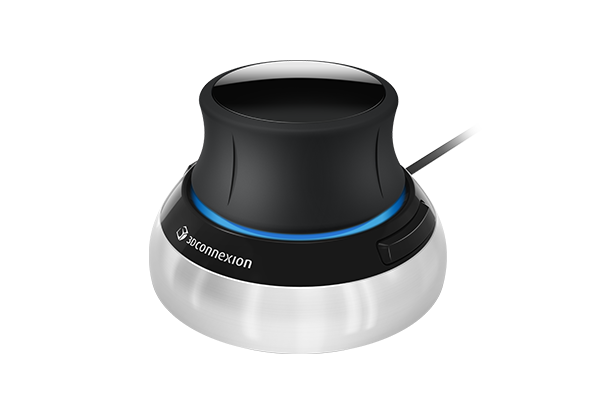
The SpaceMouse Compact is the best first SpaceMouse for most SolidWorks users because it focuses on the core job without making the purchase complicated. It gives you 3D navigation in a compact wired device with two programmable buttons. That is enough for many users because the main reason to buy a SpaceMouse is not the button count. It is the ability to move the model smoothly with your left hand while your right hand stays on the normal mouse.
This is the model to consider if you mostly work at one desk, use a desktop workstation or docked laptop, and want a lower-risk entry into 3D navigation. It is also a good choice if you are not sure whether you will build a full two-hand workflow. You can learn the controller, decide which commands deserve the two buttons, and keep using your keyboard shortcuts and mouse gestures for everything else.
The limitation is obvious: two programmable buttons are not much if you want lots of direct command access. You may still reach for the keyboard, toolbars, or SolidWorks mouse gestures often. That is not a failure of the device; it is the reason the Pro and Enterprise models exist.
Buy the Compact if you want the SpaceMouse experience at its simplest. Skip it if you already know you want a hand rest, dedicated view keys, and more shortcut buttons.
Best compact wireless option: 3Dconnexion SpaceMouse Wireless
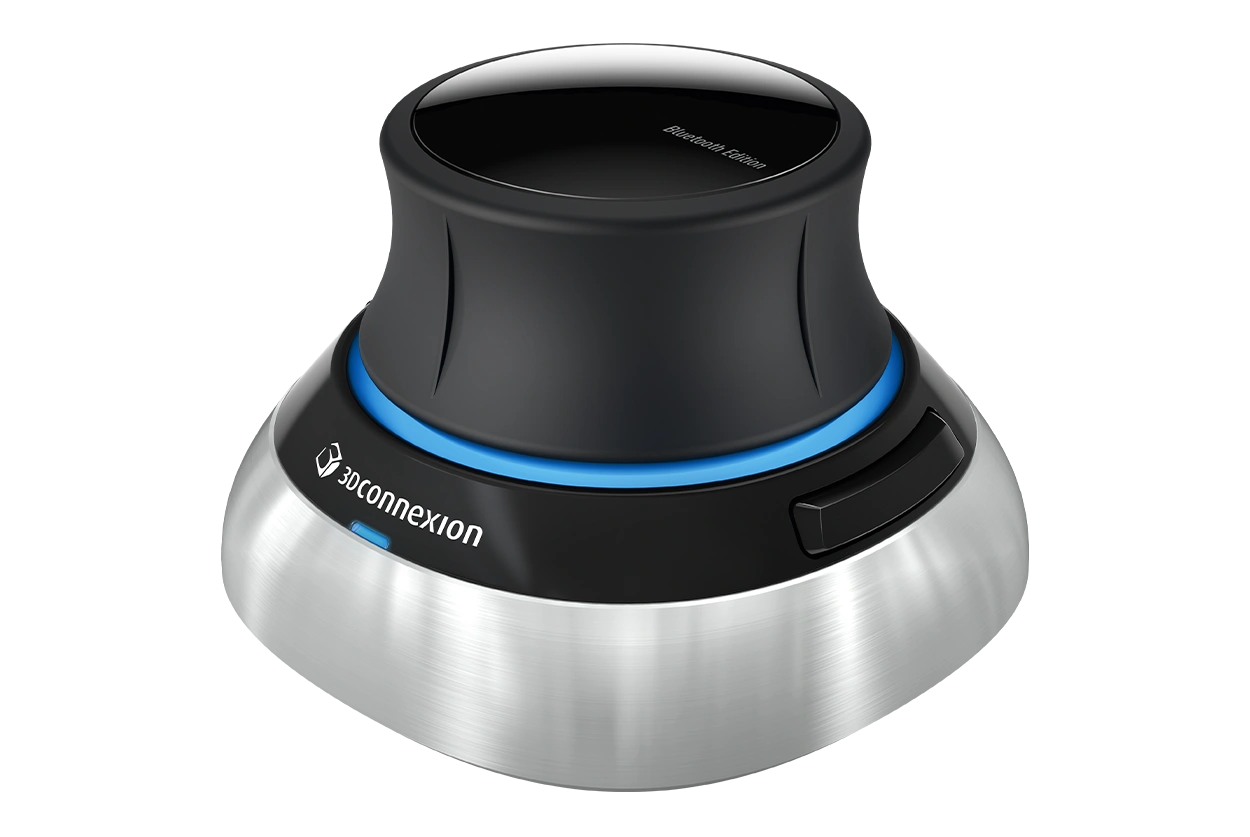
The SpaceMouse Wireless is the compact option for users who do not want a permanent cable. It is especially useful with a workstation laptop, travel setup, shared desk, classroom, meeting room, or customer presentation setup. If you regularly move your SolidWorks workstation between locations, the Wireless model makes practical sense.
Its role is not to replace the Pro line. Like the Compact, it keeps the control set simple. The benefit is flexibility. You can use it at your desk, pack it with a laptop, or bring it into a review session without building the whole workstation around a cable route.
For SolidWorks users, this is a good fit if your work includes design reviews, portable model inspection, field support, supplier discussions, or classroom demonstrations. It pairs naturally with a mobile workstation and external monitor. If you are building a complete CAD laptop setup, also see the best laptop for SolidWorks guide.
The tradeoff is that you are paying for wireless convenience, not a major jump in command controls. If you work all day at one fixed desk and do not care about the cable, the Compact may be the better value. If you want both wireless and more buttons, look at the Pro Wireless instead.
Best wired upgrade: 3Dconnexion SpaceMouse Pro
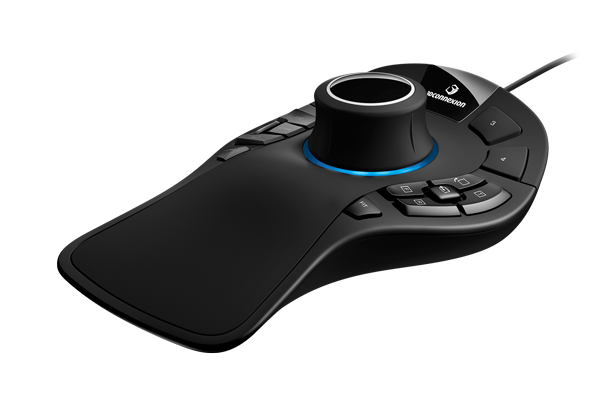
The SpaceMouse Pro is the wired upgrade for users who want more than navigation. Compared with the compact models, it adds a larger ergonomic shape and more dedicated controls. 3Dconnexion’s family comparison lists professional 3D navigation, advanced ergonomics, application command buttons, QuickView keys with Rotation Lock, and keyboard keys.
That matters in SolidWorks because view changes and repeat commands are part of real modeling work. You may switch between standard views, rotate into a selection angle, lock rotation while inspecting, or trigger common commands without wanting to move your right hand away from selection. The Pro gives you more room to build those habits.
This model makes sense for users who already spend substantial time in SolidWorks and know they want a workstation-style controller. It is a better fit for professional designers, engineers, drafters, and advanced students than for someone who only opens SolidWorks a few times per month.
The wired connection is not a weakness if the device lives permanently on one desk. In many engineering offices, a reliable wired peripheral is simpler than managing another wireless device. The bigger question is whether you will use the extra controls. If you only want smooth rotation and zoom, the Compact is less expensive and less bulky.
Best Pro model for flexible setups: 3Dconnexion SpaceMouse Pro Wireless
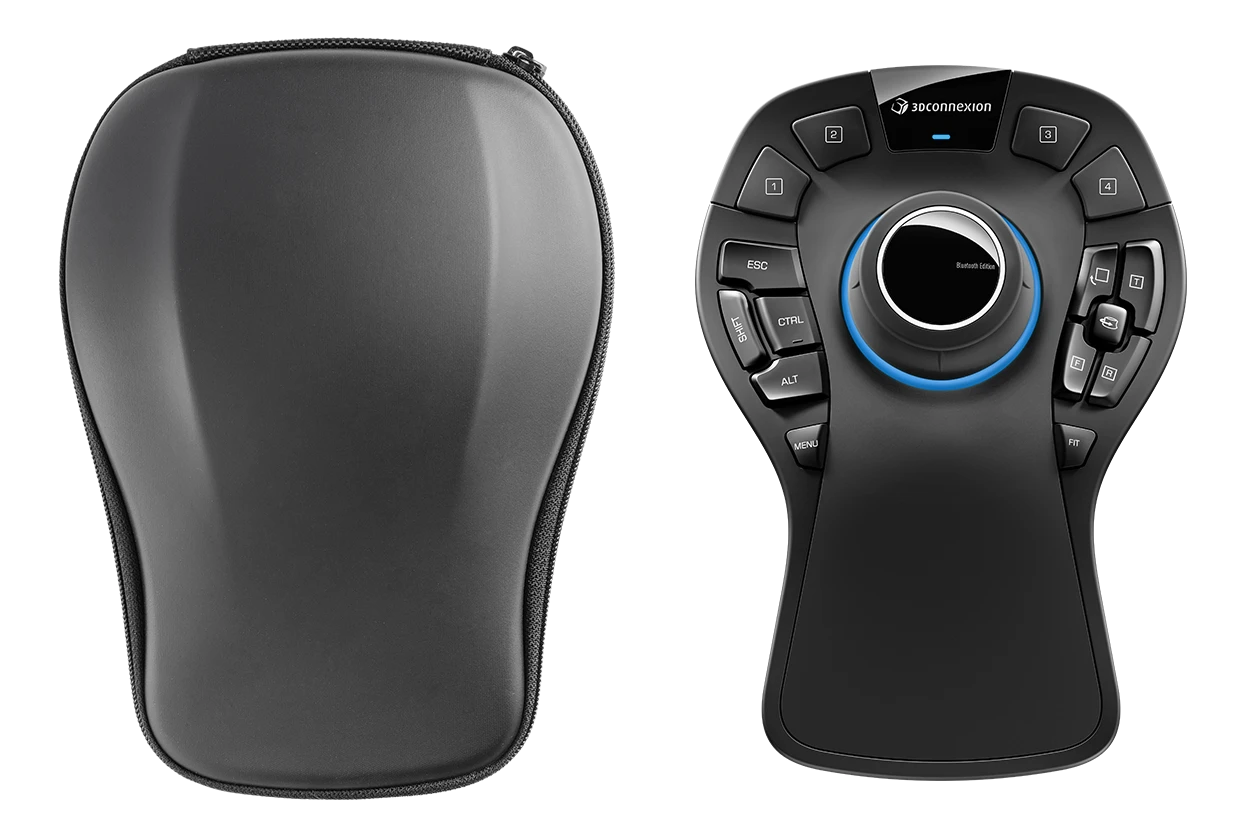
The SpaceMouse Pro Wireless is for users who want the Pro-style control layout but do not want to stay tied to one cable. 3Dconnexion positions the current Pro Wireless around professional 3D navigation, advanced ergonomics, Bluetooth, a receiver, cable use, and battery operation. For a SolidWorks user, that means it can serve both a primary desk and a flexible laptop workflow.
This is the model to consider if your workstation changes during the week. You may dock a laptop at the office, work from home, visit a conference room for design review, or carry a mobile workstation to a customer site. The compact Wireless model can also do this, but the Pro Wireless gives you the larger body and extra controls.
The main question is whether the extra cost is justified by your work pattern. If your SpaceMouse never leaves a fixed desk, the wired Pro may be enough. If you travel but only need simple navigation, the SpaceMouse Wireless may be enough. The Pro Wireless sits between those use cases: more controls than the compact Wireless, more flexibility than the wired Pro.
For professional SolidWorks users who already know they like 3Dconnexion controllers, this can be a strong long-term choice. For first-time buyers, it may be smarter to start lower unless the mobile workflow is obvious.
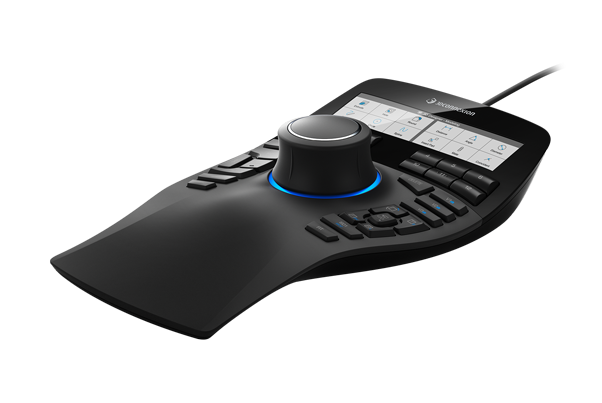
The SpaceMouse Enterprise is the premium model for users who want the most control on the device itself. 3Dconnexion’s family comparison lists the Enterprise with ultimate 3D navigation, superior ergonomics, 12 application command buttons with LCD display, 10 QuickView keys with Rotation Lock, keyboard keys, and CustomView keys.
Those controls can be valuable in a serious SolidWorks environment. If you work in large assemblies, frequently review models, move between standard and custom views, and repeat the same command groups all day, the Enterprise gives you more direct access. It is not just a navigation puck; it becomes a command surface for a CAD workstation.
It is also the easiest model to overbuy. More buttons do not automatically make you faster. You have to configure the device, learn it, and use it consistently. If you do not build habits around the extra keys, the Enterprise becomes an expensive way to rotate a model. That is why many users should start with Compact or Pro before jumping here.
Choose the Enterprise if SolidWorks is central to your job, you like programmable controls, and you are willing to tune your workspace. Avoid it if you want a simple accessory, work mostly on small parts, or are still learning which SolidWorks commands you use most.
Compact vs Wireless vs Pro vs Enterprise
| Model | Best for | Why choose it | Why skip it |
|---|---|---|---|
| SpaceMouse Compact | Most first-time buyers at a fixed desk | Simple, compact, and focused on the core navigation benefit | Not many buttons for command-heavy workflows |
| SpaceMouse Wireless | Laptop users and mobile review setups | Compact navigation without a permanent cable | Wireless convenience costs more than the wired Compact |
| SpaceMouse Pro | Daily SolidWorks users at one workstation | More view and command controls with a larger hand rest | Bigger and more expensive than the compact models |
| SpaceMouse Pro Wireless | Professional users who move between setups | Pro-style controls with flexible connectivity | Higher price than Compact, Wireless, or wired Pro |
| SpaceMouse Enterprise | Heavy daily CAD users | Most command access and view-control hardware | Overkill if you only need basic model navigation |
How to choose for SolidWorks
Start with your actual work, not the product lineup. If your SolidWorks work is mostly small parts, sketches, and occasional assemblies, you probably do not need the most expensive model. A Compact or Wireless controller gives you the main navigation benefit without asking you to redesign your whole desk workflow.
If you work in assemblies all day, spend time checking views, present models to other people, or move through the same command groups repeatedly, the Pro line becomes more interesting. The extra buttons are useful only when they replace real repeated actions. They are not valuable just because they exist.
If your desk setup already includes a good normal mouse, a proper keyboard, and maybe a second monitor, a SpaceMouse can be the next ergonomic and workflow upgrade. If your desk setup is weak, fix the basics first. A good CAD keyboard, normal mouse, monitor position, chair height, and shortcut habits all affect comfort.
Also consider file size and review frequency. Users who spend time in larger assemblies or model review sessions often appreciate smooth navigation more than users who mostly edit a single sketch or drawing sheet. If your main pain is that SolidWorks is slow, crashes, or struggles with display performance, hardware navigation will not solve the root problem. For performance issues, start with system settings, graphics support, assembly mode, and workstation hardware.
Setup tips after buying
Give yourself time to learn the device. Many users need several days before a SpaceMouse feels natural. At first, you may over-rotate, zoom too quickly, or forget to use it when your normal mouse habits take over. That is normal. Do not judge the controller from the first hour.
Start with simple movements. Practice rotating, panning, and zooming around a familiar part. Then open an assembly and practice moving around while selecting with the normal mouse. Once navigation feels natural, assign only a few buttons. It is better to use two or four shortcuts consistently than to assign many commands and forget where they are.
Good early button choices include Fit, standard views, rotation lock, normal-to-view, escape, rebuild, section view, or commands you use constantly. The best choices depend on your work. A mold designer, sheet metal user, assembly designer, and student may all prefer different mappings.
Keep your normal mouse gestures and keyboard shortcuts. A SpaceMouse is strongest when it works with those habits, not when it tries to replace them. The goal is a smoother two-hand workflow: left hand moves and triggers view/shortcut actions, right hand selects and edits.
FAQ
Is a SpaceMouse worth it for SolidWorks?
It can be worth it if you use SolidWorks often and spend a lot of time moving around parts, assemblies, and design reviews. It is less urgent for occasional users, mostly 2D drawing work, or beginners who still need to learn the basics of SolidWorks navigation and shortcuts.
Does a SpaceMouse replace a normal CAD mouse?
No. A SpaceMouse works beside a normal mouse. Use the normal mouse for selection, sketches, dimensions, menus, and detailed clicks. Use the SpaceMouse for 3D navigation and, on higher-end models, shortcut and view controls.
Which SpaceMouse should beginners buy?
Most beginners should start with the SpaceMouse Compact if they work at one desk, or the SpaceMouse Wireless if they use a laptop or move between setups. The Pro and Enterprise models make more sense after you know you will use the extra controls.
Is the SpaceMouse Enterprise overkill?
It is overkill for many users. It makes sense for heavy daily CAD users who want many command buttons, view controls, and a premium control surface. If you only need smooth model movement, the Compact or Wireless models are easier to justify.
Does a SpaceMouse help with large assemblies?
It can make navigation and review more comfortable, but it does not make a slow assembly calculate faster. If large assemblies are lagging, also check SolidWorks performance settings, graphics support, and Large Assembly Mode.
Can left-handed users use a SpaceMouse?
Many users operate a SpaceMouse with the non-dominant hand while the dominant hand stays on the normal mouse. A left-handed user may prefer the reverse setup depending on normal mouse hand, desk layout, and comfort. The important point is separating navigation from selection.
Bottom line
The best SpaceMouse for SolidWorks depends on how often you use SolidWorks, where you work, and how much command access you want on the controller itself. Start with the SpaceMouse Compact if you want the core 3D navigation benefit at a fixed desk. Choose the SpaceMouse Wireless if you need a portable or cleaner laptop setup. Move to the SpaceMouse Pro or Pro Wireless if you want more view and command controls. Choose the SpaceMouse Enterprise only if SolidWorks is heavy daily work and you will actually use the extra programmable controls.
For many users, the right answer is not the most expensive model. It is the model that fits naturally beside your normal CAD mouse, keyboard, shortcuts, and SolidWorks habits.