Best Monitor for SolidWorks
Disclosure: Some links may earn us a commission at no extra cost to you. We recommend products based on usefulness, fit, and research.
The best monitor for SolidWorks is usually a sharp 4K display with comfortable ergonomics, enough screen space for the feature tree and drawings, and the right ports for your workstation or laptop dock. You do not need a gaming monitor first. For most SolidWorks work, clarity, size, viewing comfort, color consistency, and cable management matter more than very high refresh rates.
If your main CAD work is 2D drafting, layouts, and sheet review rather than SolidWorks modeling, compare the best monitor for AutoCAD options instead.
For most users, the safest starting point is a 27-inch or 32-inch 4K monitor. A 27-inch 4K monitor is crisp and fits smaller desks. A 32-inch 4K monitor gives more comfortable working space for drawings, assemblies, reference PDFs, and side panels. If you run SolidWorks from a laptop, USB-C power delivery and a built-in hub can make the desk much cleaner. If you run a desktop workstation, focus more on panel quality, stand adjustment, inputs, and whether the screen size fits your viewing distance.
If you are still choosing the computer itself, compare this monitor guide with our SolidWorks laptop guide and CAD desktop workstation guide. The monitor should support the way you work, not compensate for a workstation that is underpowered or unstable.
Quick picks
| Monitor | Best for | Why it fits SolidWorks | CTA |
|---|---|---|---|
| Dell UltraSharp U2723QE | Best overall 27-inch 4K pick | A sharp 27-inch 4K USB-C hub monitor with a practical size for small CAD desks and docked laptop setups. | |
| Dell UltraSharp U3223QE | Best 32-inch 4K pick | More comfortable screen space for drawings, assemblies, reference windows, and SolidWorks side panels. | |
| BenQ PD3205U | Best 32-inch design-monitor alternative | A 31.5-inch 4K design display with USB-C power delivery and color-focused features that suit mixed CAD and presentation work. | |
| ASUS ProArt PA279CRV | Best 27-inch color-focused alternative | A compact 4K ProArt display for users who split time between SolidWorks, rendering, visual reviews, and creative software. | |
| LG UltraFine 32UN880 | Best ergonomic arm option if available | The Ergo stand is useful for flexible desk setups, but this model needs an availability check because LG lists it as discontinued. |
What matters in a SolidWorks monitor
SolidWorks is not a color-grading application, but that does not mean the monitor is unimportant. The screen is where you spend hours reading dimensions, inspecting edges, checking drawings, moving through assemblies, and comparing references. A poor display can make a good workstation feel tiring. A good display can make ordinary CAD work faster because the workspace is easier to read.
The first decision is resolution. For most serious SolidWorks desks, 4K is the practical target. It gives enough detail for drawings and model edges while leaving room for toolbars, the feature tree, property managers, file explorer, browser references, or a PDF drawing package. A 1440p monitor can still be usable, especially on a budget, but this guide focuses on 4K because it is the cleaner long-term recommendation for CAD productivity.
The second decision is size. A 27-inch 4K monitor is crisp and efficient. It works well when the desk is narrow, when you sit fairly close to the screen, or when you want a dual-monitor setup. The tradeoff is scaling. Many users run Windows scaling so text and icons remain comfortable. A 32-inch 4K monitor gives the same pixel count but spreads it across a larger surface. That usually feels more relaxed for drawings and assemblies, especially if you keep SolidWorks on one side and reference material on the other.
The third decision is ergonomics. Height adjustment, tilt, swivel, pivot, and VESA support matter because CAD sessions are long. If the monitor sits too low or too high, the effect builds through the workday. A screen with a good stand is usually worth more to a SolidWorks user than a screen with a flashy gaming feature that never gets used.
Ports matter too. A desktop workstation can use DisplayPort or HDMI and keep the rest of the desk separate. A laptop user may want USB-C with power delivery, USB ports, and Ethernet through the monitor or dock. If your laptop is part of the setup, check power delivery carefully. A monitor that supplies 60W may be fine for a light office laptop, but many workstation laptops need more power than that under real CAD loads. In those cases, the USB-C monitor can still handle display and peripherals, while the laptop power adapter handles heavy work.
Before buying accessories around the monitor, make sure your actual computer is ready. Our SolidWorks hardware requirements guide covers the workstation side, and our guide on making SolidWorks run faster can help separate monitor comfort from CPU, RAM, GPU, driver, or file-performance problems.
For the product shortlist, the main source checks were the manufacturers’ current product and specification pages: Dell’s pages for the UltraSharp U2723QE and UltraSharp U3223QE, BenQ’s PD3205U specification page, ASUS’s PA279CRV specification page, and LG’s U.S. page for the 32UN880-B. The LG note matters because LG lists that model as discontinued, so it should be treated as a special ergonomic option rather than the safest current default.
How to choose between these monitors
If you want the simplest answer, choose by desk type first. A laptop-heavy desk should prioritize USB-C, a useful hub, and enough power delivery to reduce cable clutter. A desktop workstation desk should prioritize panel size, stand quality, DisplayPort or HDMI compatibility, and whether the screen sits at a comfortable distance.
Then choose by work style. If you spend most of your day in parts, assemblies, and drawings, a balanced Dell UltraSharp pick is hard to argue with. If you also prepare renderings, visual reviews, instruction images, or client-facing design work, the BenQ and ASUS ProArt options become more interesting because their color-focused positioning can support the non-modeling parts of the job.
Finally, choose by physical comfort. A monitor that is technically excellent but positioned badly will still feel wrong after a long day. Check height adjustment, tilt range, VESA mounting, desk depth, and whether a monitor arm would help. For many SolidWorks users, the best upgrade is not just a sharper panel. It is a sharper panel placed where the neck, shoulders, and eyes can tolerate it for a full workday.
Best overall 27-inch 4K monitor for SolidWorks: Dell UltraSharp U2723QE

The Dell UltraSharp U2723QE is the most sensible default pick if you want a high-quality 27-inch 4K monitor for SolidWorks without turning the desk into a large display wall. It is sharp, professional-looking, and built around the kind of USB-C hub feature set that suits a docked engineering laptop or compact workstation desk.
The reason a 27-inch 4K monitor works well for SolidWorks is precision. Model edges, sketch relations, dimension text, drawing notes, and small interface elements look clean when the panel is sharp. If you spend a lot of time moving between part modeling and drawings, that clarity is useful every day. It does not make the CAD model rebuild faster, but it makes the work area easier to read.
The U2723QE also makes sense when desk space is limited. A 32-inch monitor can be excellent, but it asks more from the desk, viewing distance, and arm position. A 27-inch display is easier to place correctly, easier to pair with a second monitor, and easier to fit beside a laptop stand.
The main caveat is scaling. At 27 inches, 4K is very sharp, but many users will not want to run everything at 100 percent scaling. That is normal. If you are sensitive to tiny interface text, expect to tune Windows scaling and SolidWorks toolbar size until the setup feels right.
Choose the Dell UltraSharp U2723QE if you want one strong monitor for a clean SolidWorks desk, especially if you use a laptop with USB-C docking. Skip it if you know you prefer larger text and more physical drawing space, in which case the 32-inch pick below may be more comfortable.
Best 32-inch 4K monitor for SolidWorks: Dell UltraSharp U3223QE

The Dell UltraSharp U3223QE is the better choice if you want one main monitor and you value working space more than a compact desk footprint. A 32-inch 4K screen is comfortable for SolidWorks because the feature tree, toolbars, property manager, model area, and reference material do not feel as compressed.
This size is especially helpful for drawings. Drawing views, dimensions, notes, balloons, title blocks, and revision tables all benefit from more physical room. You can zoom less aggressively, compare areas of the sheet more easily, and keep supporting windows visible without constantly switching focus.
For modeling, the benefit is not only the larger model view. It is the whole workspace. Assemblies often require the tree, mates, configurations, file references, measurement tools, and supporting documents. A 32-inch display makes it easier to keep those pieces visible without feeling cramped.
The U3223QE is still a professional productivity monitor, not a gaming-first display. That is the correct tradeoff for most SolidWorks users. You are paying for a practical 4K work surface, USB-C hub features, and an office-friendly panel rather than chasing refresh rates that do not matter much for ordinary CAD modeling.
The caveat is desk fit. A 32-inch monitor needs more viewing distance and better positioning. If you sit too close, the corners can feel far away. If your desk is shallow, a monitor arm may help. If your desk is narrow, the 27-inch U2723QE may be the smarter setup.
Best 32-inch design-monitor alternative: BenQ PD3205U

The BenQ PD3205U is a strong alternative if you want a 32-inch 4K monitor with a design-focused feature set. It is not only for SolidWorks modeling. It makes the most sense for users who split time between CAD, product visuals, presentation work, rendering reviews, client images, or other tasks where color consistency matters more than it does in pure part modeling.
For normal SolidWorks work, color accuracy is not the first buying criterion. You should care about resolution, size, ergonomics, reliability, and ports before you obsess over color specs. But many CAD users do not work only in SolidWorks. They also prepare product images, renderings, documentation, marketing visuals, assembly instructions, and customer presentations. That is where a design-monitor alternative becomes more attractive.
The PD3205U also fits the 32-inch 4K sweet spot. It gives enough physical screen space for a comfortable CAD workspace while keeping text and dimensions readable. For laptop users, USB-C power delivery can simplify the desk, although heavy workstation laptops may still need their own power adapter during demanding SolidWorks work.
Choose the BenQ if you want a monitor that feels more tuned for design and visual work than a plain office display. Choose the Dell U3223QE instead if you want the more direct productivity-monitor pick for a workstation desk.
Best 27-inch color-focused alternative: ASUS ProArt PA279CRV

The ASUS ProArt PA279CRV is the 27-inch pick for users who want a compact 4K monitor with stronger color-focused positioning than a standard office display. It is a good fit when SolidWorks is part of a broader workflow that also includes rendering, product presentation, Adobe apps, documentation images, or client-facing visuals.
For SolidWorks-only modeling, the ProArt branding should not distract you. The useful part is still the same: a sharp 27-inch 4K panel, ergonomic adjustment, and modern USB-C connectivity. The color features are a bonus if your work benefits from them.
This monitor makes more sense than a large 32-inch screen if you have limited desk depth, want a dual-monitor setup, or prefer a sharper compact display. It also works well beside a laptop stand because it does not dominate the entire desk.
The tradeoff is physical space. A 27-inch 4K display is not as relaxed as a 32-inch 4K display for drawings or large assemblies. If you are constantly opening big drawing sheets or comparing multiple windows, the Dell U3223QE or BenQ PD3205U may feel better. If you want compact sharpness and color confidence, the PA279CRV is a better fit.
Best ergonomic arm option if available: LG UltraFine 32UN880

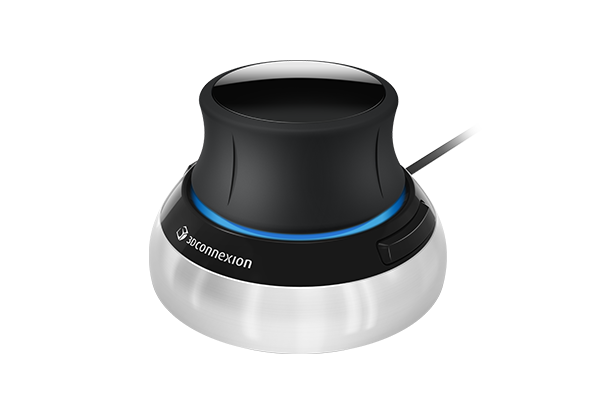
The LG UltraFine 32UN880 is different from the other monitors here because the stand is the point. Its Ergo arm design can be useful if you want a 32-inch 4K screen that can move more freely than a typical monitor stand. For a SolidWorks desk, that can matter. Good positioning helps with long modeling sessions, and an arm can free desk space for drawings, a keyboard, a CAD mouse, a 3D mouse, or a laptop dock.
The important caveat is availability. LG’s own U.S. product page lists the 32UN880-B as discontinued, so this should not be treated as the simple default pick. It can still be worth considering if you find a clean current listing and specifically want the ergonomic arm format, but the safer general recommendations are the current Dell, BenQ, and ASUS options above.
Use this kind of monitor if your desk setup matters as much as the panel. If you frequently switch between standing and sitting, share a desk, move the screen closer for detailed drawing review, or need to reclaim desk space, the arm design is genuinely useful. If you just want the best current monitor with the least availability friction, pick one of the other models.
27-inch vs 32-inch for SolidWorks
A 27-inch 4K monitor is best when you want sharpness, compact size, and easier placement. It is a strong choice for students, home offices, smaller engineering desks, and laptop users who want one external display without rearranging the whole workspace. It also works well as one half of a dual-monitor setup.
A 32-inch 4K monitor is best when you want comfort and working room. It makes drawings easier to view, gives assemblies more breathing room, and reduces the feeling that SolidWorks panels are crowding the model. If you use one main monitor all day, 32 inches is often easier to live with once the desk is set up correctly.
The mistake is buying only by size. A poor 32-inch monitor can be worse than a good 27-inch monitor. A shallow desk can make a large screen uncomfortable. A 27-inch 4K monitor can look too small at 100 percent scaling. Think about viewing distance, desk depth, whether you use a laptop screen beside it, and whether the monitor has a stand or VESA mount that lets you place it correctly.
Should SolidWorks users buy a gaming monitor?
A gaming monitor is not automatically wrong, but it is rarely the first recommendation for SolidWorks. High refresh rate is excellent for games and can make general desktop movement feel smooth. It does not usually solve the main problems CAD users have: reading drawings, managing screen space, reducing eye strain, docking a laptop, or keeping the monitor at the right height.
If you also game on the same desk, a gaming monitor may be a reasonable compromise. In that case, still pay attention to resolution, panel quality, stand adjustment, text clarity, and inputs. A fast 1440p gaming monitor may be fun after work, but a 4K productivity monitor may be better during eight hours of drawings and assemblies.
For a dedicated SolidWorks workstation, start with productivity and professional-display features. Add gaming requirements only if they are truly part of the same setup.
Monitor setup tips for SolidWorks
Set the monitor so the top of the screen is near eye level or slightly below it. Keep the screen far enough away that you can see the whole workspace without turning your head constantly. If you use a 32-inch monitor on a shallow desk, a monitor arm can make the setup much more comfortable.
Do not ignore Windows scaling. A monitor can have excellent specs and still feel bad if text is too small or too large. Test SolidWorks toolbars, the feature tree, drawing dimensions, and property manager panels after changing scaling. The right setting is the one that lets you work comfortably, not the one that looks best in a spec sheet.
If you use two monitors, put the main SolidWorks display directly in front of you. Use the second monitor for reference drawings, email, PDM, browser tabs, spreadsheets, or documentation. Avoid placing the model view off to the side for long sessions because neck rotation adds up quickly.
Also check brightness and room lighting after the monitor is in place. Many engineering offices run screens too bright under harsh overhead light, then compensate by leaning forward or zooming constantly. A comfortable monitor setup should let you read dimensions and sketch relations without squinting, while still leaving model edges crisp enough for detailed inspection.
Finally, do not let the monitor hide a bigger workstation problem. If SolidWorks is slow, crashing, or unstable, check drivers, RAM, storage, file health, and graphics settings. Our guides on why SolidWorks is running slow, using SolidWorks RX, and CAD mice can help you improve the whole workstation experience, not just the screen.
FAQ
Is 4K worth it for SolidWorks?
Yes, for most serious SolidWorks desks, 4K is worth it. It gives more detail for drawings, models, and interface panels. The main caveat is scaling, especially on 27-inch monitors.
Is 27 inches or 32 inches better for SolidWorks?
Choose 27 inches if you want compact sharpness or a dual-monitor setup. Choose 32 inches if you want a more relaxed main display for drawings, assemblies, and reference windows.
Do I need a color-accurate monitor for SolidWorks?
Not for ordinary modeling. Color accuracy matters more if you also do rendering, product visuals, marketing images, client presentations, or creative work. For pure CAD, prioritize size, clarity, ergonomics, and ports first.
Is ultrawide better than 4K for SolidWorks?
An ultrawide monitor can be useful for multitasking, but this guide favors 4K because drawing clarity, vertical resolution, and predictable CAD workspace behavior are more important for many SolidWorks users. A 32-inch 4K monitor is often the safer single-screen choice.
Can I use a TV as a SolidWorks monitor?
You can, but it is usually not ideal. TVs can have weaker text clarity, limited ergonomics, different input behavior, and awkward desk sizing. A proper monitor is usually better for daily CAD work.