What Files Can SOLIDWORKS Open?
SOLIDWORKS can open far more than just native SOLIDWORKS parts, assemblies, and drawings. It supports its own file types, many third-party CAD formats, neutral exchange formats such as STEP and IGES, 2D CAD files such as DWG and DXF, and several mesh-based formats such as STL and OBJ.
The important detail is that opening a file does not always mean the same thing. Some files open as fully native SOLIDWORKS documents. Some import as linked third-party references through 3D Interconnect. Others come in as imported geometry, mesh bodies, graphics bodies, or limited-reference data that you may not edit the same way as a native SOLIDWORKS feature tree.
This guide explains what SOLIDWORKS can open, how those file types are best grouped, and what limitations matter in practice.
The short answer
SOLIDWORKS can open these main categories of files:
- Native SOLIDWORKS files:
.sldprt,.sldasm,.slddrw, templates, and related SOLIDWORKS document types - Third-party native CAD files: formats from systems such as Inventor, CATIA, Creo, NX, and Solid Edge
- Neutral 3D exchange files: STEP, IGES, Parasolid, ACIS, IFC, JT, and similar interchange formats
- 2D CAD files: DWG and DXF
- Mesh and manufacturing formats: STL, OBJ, OFF, PLY, PLY2, VRML, 3MF, and related mesh-style inputs
If you only wanted the short answer, that is it. The rest of the topic is about what happens after you open those files.
How to see the supported file list directly in SOLIDWORKS
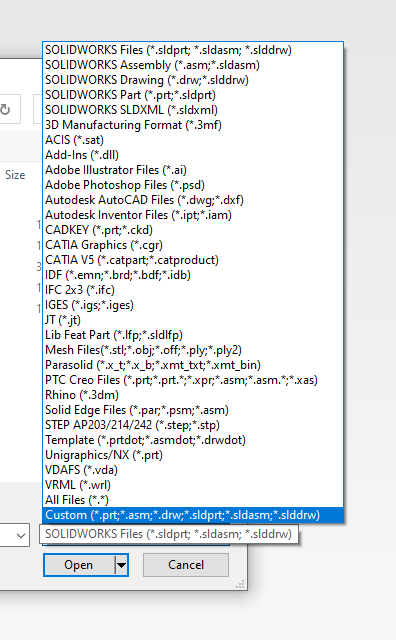
If you want to check the supported formats on your own system, the fastest method is still the built-in file-open dialog.
- Go to File > Open, or press Ctrl+O.
- Open the file-type selector in the lower section of the dialog.
- Review the available file types shown by SOLIDWORKS.
This is a good quick check, but it does not explain the differences between native editing, imported geometry, and linked third-party workflows. That is where users usually need more context.

On the next screen, open the file-type menu to display the supported import and open options.

The file-type list is useful because it shows the software’s practical opening options, not just a marketing-level compatibility claim.
Native SOLIDWORKS files
The most straightforward files are the native SOLIDWORKS formats:
.sldprtfor part files.sldasmfor assembly files.slddrwfor drawing files.prtdot,.asmdot, and.drwdotfor templates
These are the files that preserve the native SOLIDWORKS feature tree, references, configurations, and normal editing behavior.
There is one important version caveat, though. Newer SOLIDWORKS files are not universally backward compatible. Official guidance says an earlier release has only limited support for files from the immediately following release, and that support is restricted and read-only under specific conditions. So “it is a SOLIDWORKS file” does not automatically mean every installed version can work with it normally.
Third-party native CAD files
SOLIDWORKS can also open many native files from other CAD systems. Depending on the format and settings, this often happens through 3D Interconnect, which allows SOLIDWORKS to open the external CAD file while keeping an associative link to the source document.
Common examples include files from:
- Autodesk Inventor
- CATIA V5
- PTC Creo / ProE
- Siemens NX / Unigraphics
- Solid Edge
This is where many users get the wrong expectation. SOLIDWORKS can often open these files, but that does not mean it recreates the full native design history from the source system. In many cases, you get imported geometry, linked external references, or a derived/base-part style result rather than a clean native feature tree.
Why 3D Interconnect matters
3D Interconnect changed the meaning of “open” for many third-party CAD formats. Instead of forcing every import to become a one-time converted body, it can keep a live association to the source file. That means you may be able to update the SOLIDWORKS model when the original CAD file changes.
This is useful when:
- you collaborate with teams using other CAD software
- you receive periodic model revisions from suppliers or customers
- you want to avoid repeated full re-import workflows
But it also comes with tradeoffs. If you break the link to the original file, that action is effectively irreversible. After that, you cannot reconnect the same model to the source file in the same way, and some linked-import behavior is lost. That is why linked imports should be treated as a deliberate workflow choice, not just a default click-through.
Neutral 3D exchange formats
SOLIDWORKS also opens the major neutral 3D exchange formats used to move geometry between CAD systems:
.step,.stpfor STEP.igs,.igesfor IGES.x_t,.x_b,.xmt_txt,.xmt_binfor Parasolid.satfor ACIS.jtfor JT.ifcfor IFC.vdafor VDAFS
These formats are commonly used because they transfer geometry more reliably across CAD systems than proprietary native files. STEP is often the safest general-purpose choice for neutral solid-model transfer.
However, imported neutral files usually do not bring in a meaningful parametric history. They are primarily geometry-transfer formats. If you need editable native features afterward, feature recognition may help in some cases, but that is a separate process and it has clear limits.
2D CAD files: DWG and DXF
If DWG and DXF files are a regular part of your workload, our AutoCAD laptop guide and AutoCAD monitor guide cover the computer and display choices that matter for drafting, layouts, and reference-file review.
SOLIDWORKS can open .dwg and .dxf files, which is useful for drawings, sketch import, and certain 2D-to-3D workflows. The DXF/DWG Import Wizard helps control what data comes in and how it is mapped.
This is particularly useful when:
- you need to import 2D profiles for sketch-based features
- you receive vendor or legacy drawing data in AutoCAD-style formats
- you need drawing information without moving to a fully native DWG editing platform
Still, users should not assume full AutoCAD fidelity in every case. Official documentation notes some limitations, including unsupported native bitmap content in certain scenarios. In other words, SOLIDWORKS can open DWG and DXF, but it is not AutoCAD.
Mesh files and manufacturing formats
SOLIDWORKS also opens a range of mesh and manufacturing-oriented formats, including:
.stl.obj.off.ply,.ply2.wrlfor VRML.3mf
These formats need special handling because they are not equivalent to standard parametric CAD solids. Depending on the import settings, SOLIDWORKS may open them as a graphics body, a mesh BREP, or a heavier BREP-style body conversion.
That distinction matters because it affects:
- editability
- performance
- feature creation options
- overall usefulness in downstream modeling
For example, importing a large STL as full BREP-style geometry can become computationally expensive because the facets are converted into many faces. That is very different from opening a native part file.
Feature recognition is not the same as file compatibility
This is one of the biggest misunderstandings in CAD data exchange.
When SOLIDWORKS opens a third-party file, that does not mean you instantly get a fully native, editable SOLIDWORKS model history. Often you just get imported geometry. If you want recognizable native-style features afterward, you may need FeatureWorks or manual remodeling, and even then the recognized result depends on the geometry and supported feature types.
So there are really three different questions:
- Can SOLIDWORKS open the file?
- Can SOLIDWORKS update from that source file?
- Can SOLIDWORKS convert it into a useful native feature structure?
Those are not the same question, and the answer often changes by format.
Why file extensions can be misleading
Some extensions are reused across CAD systems. That is why a list of extensions by itself can be misleading.
For example:
.prtcan refer to different formats depending on the software family.asmis also ambiguous across multiple systems.drwis not unique to one CAD platform
That means you should not assume the extension alone tells you exactly how SOLIDWORKS will interpret the file. The source application and the import path matter.
Common file formats SOLIDWORKS can open
Here is a practical list of common formats you are likely to encounter:
.sldprt,.sldasm,.slddrwfor native SOLIDWORKS documents.step,.stpfor STEP exchange files.igs,.igesfor IGES exchange files.x_t,.x_bfor Parasolid files.satfor ACIS files.dwg,.dxffor 2D CAD files.ipt,.iamfor Autodesk Inventor files.catpart,.catproductfor CATIA V5 files.prt,.asm,.xpr,.xasfor Creo-related formats in supported workflows.par,.psm,.asmfor Solid Edge workflows.stl,.obj,.off,.ply,.ply2for mesh import.3mfand.wrlfor manufacturing and visualization-oriented workflows
This is not the only list, but it covers the formats most users ask about in practice.
Which file format should you prefer?
| Situation | Best usual choice |
|---|---|
| Working entirely inside SOLIDWORKS | Native SOLIDWORKS files |
| Exchanging solid geometry with another CAD system | STEP or Parasolid |
| Need a linked third-party workflow | 3D Interconnect-supported native format |
| Importing legacy 2D geometry | DWG or DXF |
| Working with scan, print, or triangulated mesh data | STL, OBJ, 3MF, or related mesh format |
FAQ
Can SOLIDWORKS open STEP files?
Yes. STEP is one of the standard neutral formats SOLIDWORKS supports and is often the best choice for cross-platform solid-model exchange.
Can SOLIDWORKS open AutoCAD files?
Yes. SOLIDWORKS can open DWG and DXF files, usually through dedicated import workflows and the DXF/DWG Import Wizard.
Can SOLIDWORKS open STL files?
Yes, but STL is a mesh format. That means the result is not the same as opening a normal native parametric part file, and the import mode affects how usable the result will be.
Can SOLIDWORKS open files from Inventor, Creo, or CATIA?
Yes, many of those formats are supported, often through 3D Interconnect, but support depends on the specific format version and does not guarantee full native feature-history conversion.
Can an older version of SOLIDWORKS open a newer SOLIDWORKS file?
Only in limited cases. Official support for newer-version files in earlier releases is restricted and should not be treated as normal backward compatibility.
Final thoughts
SOLIDWORKS can open a wide range of file types, but the real question is not just whether a file opens. The better question is what kind of result you get after it opens: a native editable model, a linked third-party reference, imported geometry, a drawing import, or a mesh body.
If you keep that distinction in mind, the file-type list becomes much more useful. Native SOLIDWORKS files are best for normal editing, STEP and Parasolid are strong neutral choices, 3D Interconnect is valuable for linked third-party workflows, and mesh formats should be approached with the right expectations from the start.


